

Monitor running workflows
What this achieves
Section titled “What this achieves”Every request that enters a workflow becomes an instance you can follow from start to finish. This is where you answer “where has this request got to, and why has it stopped?”
Required role: Administrator.
- Go to Approvals → Instances.
- Filter by status, or search by request, resource, or workflow.
- Open the instance you are investigating.
- Read the Execution Timeline to see which steps have run, who was assigned, and how long each took.
- Open Execution Logs for the detail behind a step that failed.
- Select View on Canvas to see the same route as a diagram, with the current position marked.
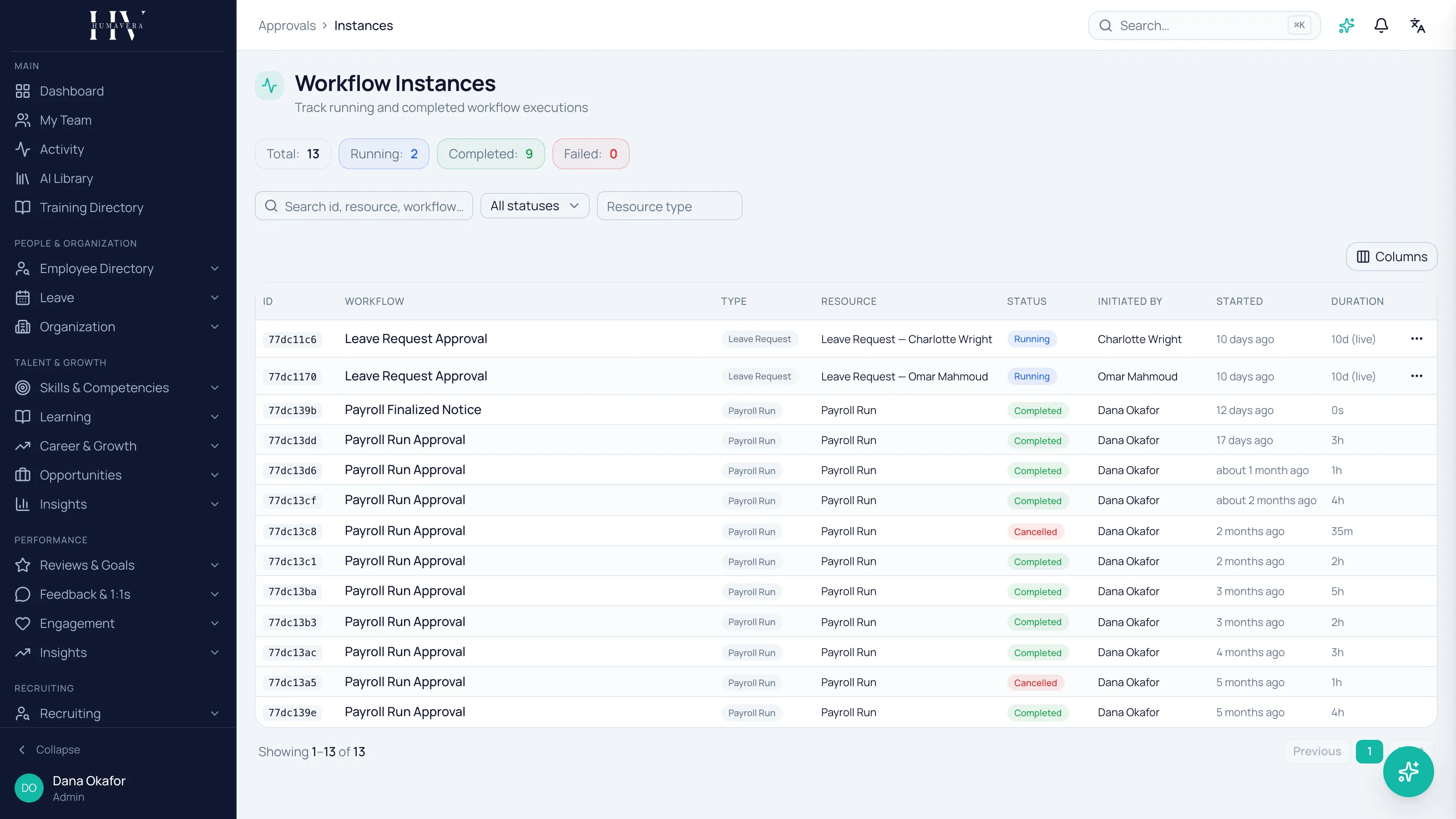
Reading the list
Section titled “Reading the list”The counts across the top — total, running, completed, and failed — are the fastest health check you have. A rising failed count is a configuration problem, not a people problem.
| Option | Description |
|---|---|
| ID | The instance’s own reference. |
| Workflow | The route it is following. |
| Resource | What the request is about, in readable terms. |
| Status | Pending, running, completed, failed, cancelled, or suspended. |
| Initiated By | Who raised it. |
| Started / Duration | When it began and how long it has been running. A running instance counts up live. |
The instance view
Section titled “The instance view”| Option | Description |
|---|---|
| Execution Summary | The resource, start and completion times, duration, and how many steps of the total have completed. |
| Execution Timeline | Every step in order with its type, duration, assignee, outcome, and whether it met or breached its deadline. |
| Execution Logs | The detailed record behind the timeline, filterable to one step. |
| Context | The data the request carried, which is what the conditions were evaluated against. |
Example: Priya Raman opens a promotion instance that has not moved for two days. The timeline shows the Finance step waiting on Daniel Okonkwo with its deadline breached, and the context shows the grade that sent it down the Finance branch. Both questions — where and why — are answered on one screen.
The live canvas
Section titled “The live canvas”View on Canvas shows the route as a read-only diagram that refreshes while the instance is running, with each step coloured by state: completed, in progress, waiting, failed or breached, and not reached.
Use it when the route branches. A timeline tells you what happened; the diagram tells you which path was taken.
Intervening in a running instance
Section titled “Intervening in a running instance”| Option | Description |
|---|---|
| Cancel | Stops the workflow and cancels every pending or waiting step under it. Available while an instance is pending, running, suspended, or failed. |
| Suspend | Pauses a running instance. |
| Resume | Restarts a suspended instance from where it paused. |
| Retry | Available on a failed instance, to run it again after the cause has been fixed. |
Cancelling asks for a reason, and the reason is stored on the instance. Write a real one: cancellation is the intervention most likely to be questioned later.
Cancelling an instance stops the approval route. It does not undo anything the route had already caused to happen at an earlier step.
Taking the record out
Section titled “Taking the record out”An instance can be exported as data, or downloaded as an audit document that sets out the whole route and every decision on it in readable form. That document is what to produce when an auditor asks who approved something and when.
What happens next
Section titled “What happens next”A completed instance settles the request in the section that owns it. A failed one usually points at the route rather than the request — check the step that failed, fix it in a new version, and remember that requests already running stay on the version they started under.
Related
Section titled “Related”© 2025-2026 Humavera Documentation - BPilot Ltd. All Rights Reserved