

Run a payroll cycle
What this achieves
Section titled “What this achieves”A payroll run calculates one pay group’s pay for one period and produces its payslips. This page covers the run from creation to finalisation, which is the sequence you repeat every period.
Required role: Administrator.
Before you start
Section titled “Before you start”Your pay group, its legal entity’s statutory profile, and your pay elements must already exist. Everything feeding the period — approved leave, attendance, one-off inputs — should be in before you calculate, because calculating early means recalculating.
- Go to Payroll → Payroll Runs.
- Select New run.
- Choose the Pay group.
- Choose the Pay period. If the group has no periods yet, use Generate a period and then Generate.
- Select Create run.
- Open the run and select Gather inputs to resolve which employees are in it.
- Select Calculate to produce draft payslips.
- Check the totals and the draft payslips.
- Select Submit for review.
- A second administrator approves the run — or you do, where your workspace has turned that requirement off.
- Select Finalize.
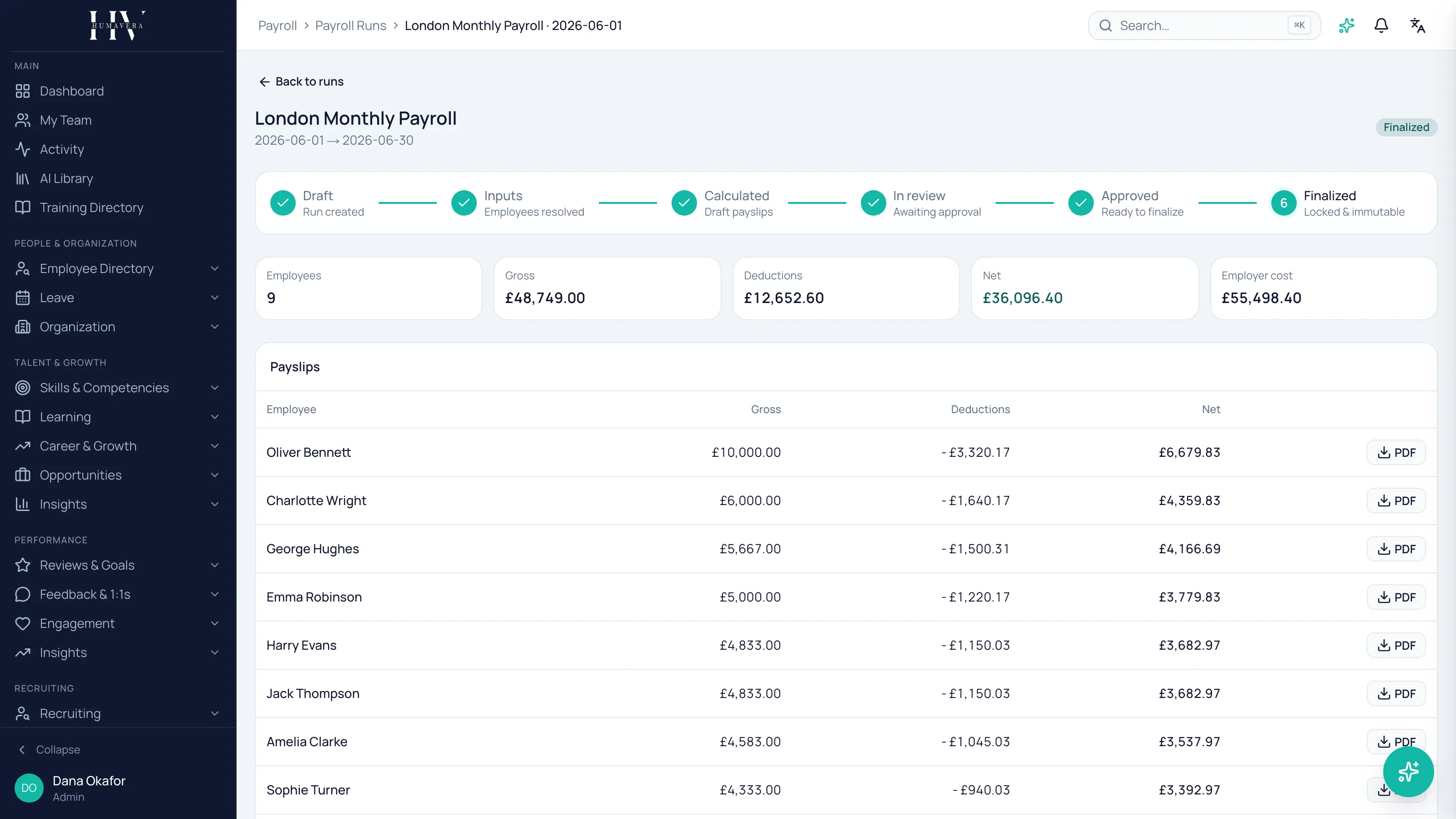
The run lifecycle
Section titled “The run lifecycle”| Option | Description |
|---|---|
| Draft | The run exists. Nothing has been resolved or calculated. |
| Inputs gathered | Employees have been resolved into the run. |
| Calculated | Draft payslips exist and can be reviewed. |
| In review | The run is awaiting approval. |
| Approved | Approved and ready to finalise. |
| Finalized | Locked. Payslips are immutable and the pay period is closed. |
| Cancelled | The run was discarded. |
What to check before submitting
Section titled “What to check before submitting”The run shows totals for Employees, Gross, Deductions, Net, and Employer cost, with the draft payslips beneath. Draft values are marked as draft — they finalise when the run does.
Example: if HC Corp UK Ltd’s monthly group usually shows 34 employees in Engineering and this run shows fewer, the input step has picked up a change worth understanding before the run goes further.
You can also select Explain this run for an AI narration of variance against the prior period, with flagged anomalies such as a net pay swing, a large element change, or a new loan deduction. It is advisory only: the figures are computed by Humavera and the model narrates them without ever seeing employee names. It changes nothing in the run.
Recalculating
Section titled “Recalculating”If something was wrong, Recalculate re-runs the calculation. Do this before submitting rather than after finalising, because finalising cannot be undone.
Finalising is permanent
Section titled “Finalising is permanent”Finalising locks every payslip as immutable and closes the pay period. It cannot be undone.
Example: once Priya Raman finalises HC Corp UK Ltd’s March 2026 run, a pay rise applied in April does not change what March’s payslips say. A correction to March becomes an off-cycle run or an adjustment in a later period.
Cancelling is the opposite end: it discards the run and deletes its draft payslips. Finalised runs are never affected by a cancellation.
What happens next
Section titled “What happens next”Finalised payslips become available to employees under their own payslips view, and the run’s figures feed payroll reports, consolidated reporting, and the bank payment file. Loan installments due in the period are deducted, and any approved commission for the period reaches the payslip according to its plan’s payout timing.
Related
Section titled “Related”© 2025-2026 Humavera Documentation - BPilot Ltd. All Rights Reserved