

Create an eligibility rule
What this achieves
Section titled “What this achieves”An eligibility rule says who automatically receives which pay element, such as everyone in London getting a travel allowance. Nothing is written onto an employee record: the rule is resolved again at every payroll run, so joiners and leavers are picked up without anyone editing them.
Required role: Administrator.
Before you start
Section titled “Before you start”Create the pay element you want the rule to grant. A rule pays one element, and the element is what decides the tax and social-insurance treatment of the amount.
-
Go to Payroll → Eligibility Rules.
-
Select New rule.
-
Enter a Rule name.
Example:
London Travel. Employees see this name on their payslip next to the allowance it grants, so write it for them. -
Set the Legal entity, or leave it as All entities.
-
Under Who it applies to, set the criteria that define who the rule reaches.
-
Under What it pays, choose the Pay element.
-
Choose How much — either a fixed Monthly amount or a Percent of base salary.
-
Set Effective from, and leave Effective to empty to run open-ended.
-
Check the Live preview to confirm who the rule reaches.
-
Select Save rule.
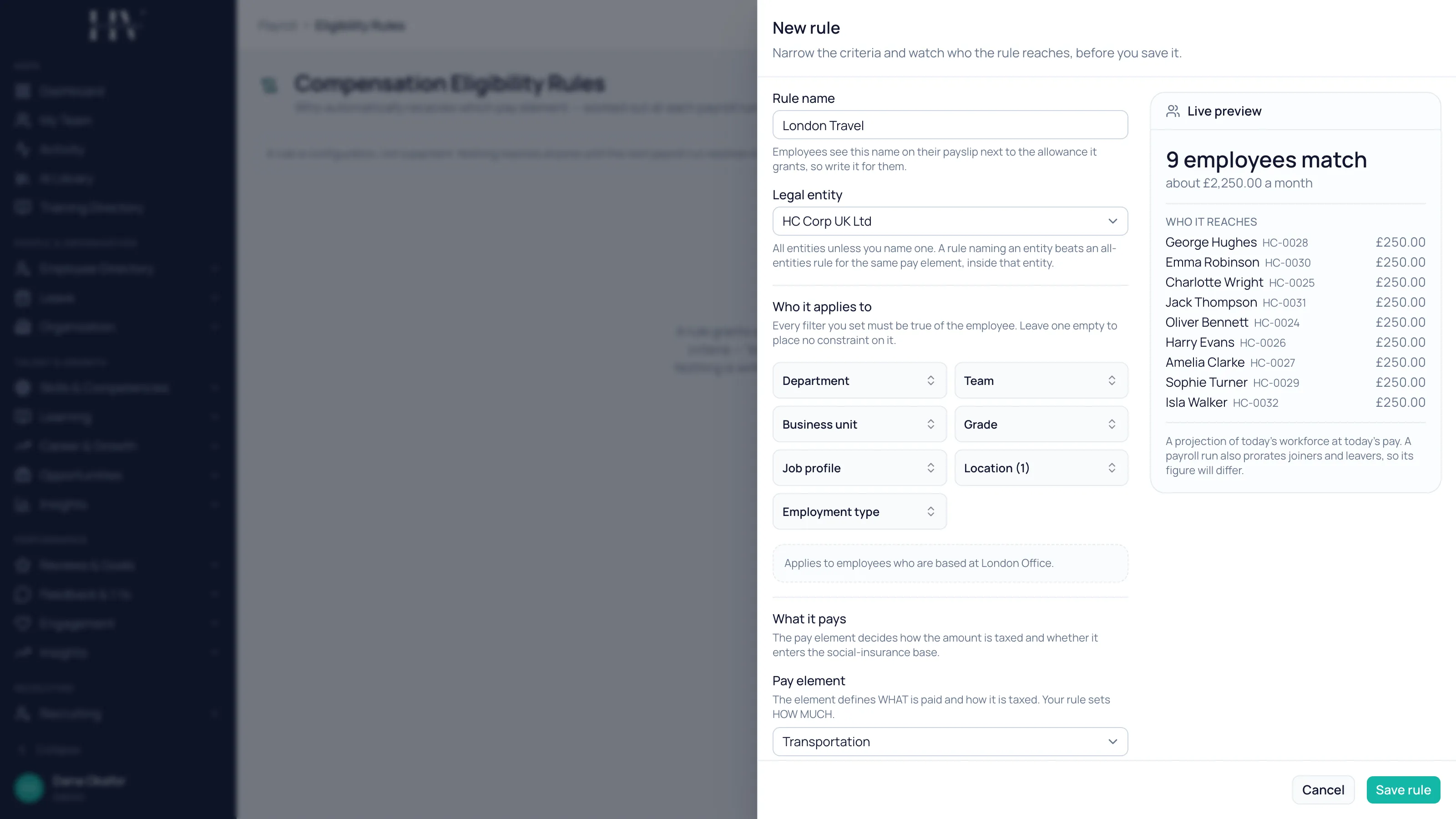
Criteria combine with AND
Section titled “Criteria combine with AND”Every filter you set must be true of the employee. Leaving a filter empty places no constraint on it, and setting no filters at all reaches your whole workforce.
Example: setting both a location of London and a department of Engineering reaches only HC Corp employees who are in London and in Engineering. James Whitfield qualifies; a Sales employee in London does not.
| Option | Description |
|---|---|
| Department | Employees in the named departments. |
| Team | Employees in the named teams. |
| Business unit | Employees in the named business units. |
| Grade | Employees at the named grades. |
| Job profile | Employees holding the named job profiles. |
| Location | Employees at the named locations. |
| Employment type | Employees of the named employment types. |
How much
Section titled “How much”| Option | Description |
|---|---|
| Fixed amount | A monthly amount, before any proration for a mid-period joiner or leaver. |
| Percent of base salary | A percentage applied to base salary normalized to a month, so it means the same at every pay frequency. |
Use the live preview before saving
Section titled “Use the live preview before saving”The preview shows how many employees match and roughly what the rule costs a month, with a sample of who it reaches. It is a projection of today’s workforce at today’s pay — a real run also prorates joiners and leavers, so its figure will differ.
Two preview messages are worth acting on. If nobody matches, your conditions are too narrow, because they combine with AND. If matched employees have no usable base salary, a percentage rule pays them nothing.
Only one rule pays a given element per employee
Section titled “Only one rule pays a given element per employee”If another active rule already pays the same element, Humavera tells you before you save. You can still save — the warning exists so you know which rule wins.
Two things break a tie. A rule naming a specific entity beats an all-entities rule for the same element inside that entity. Beyond that, Priority decides it, and higher wins. Leave priority at 0 unless you mean it.
What happens next
Section titled “What happens next”A rule is configuration, not a payment. Nothing reaches anyone until the next payroll run resolves it, and what that run works out is what the payslip records. To retire a rule, set Effective to rather than deleting it: that stops it running without erasing what it has already paid.
Related
Section titled “Related”© 2025-2026 Humavera Documentation - BPilot Ltd. All Rights Reserved