

Create an employee
What this achieves
Section titled “What this achieves”Creating an employee produces the record every other part of Humavera reads from — payroll, leave, learning, and performance all hang off it. It does not, on its own, give that person a way to sign in.
Required role: Administrator.
Before you start
Section titled “Before you start”The legal entity, department, and position you will assign must already exist. If this is your first employee, Add your employees walks the form step by step; this page covers what creation produces and the decisions inside it.
- Go to Employee Directory → All Employees.
- Select Add Employee.
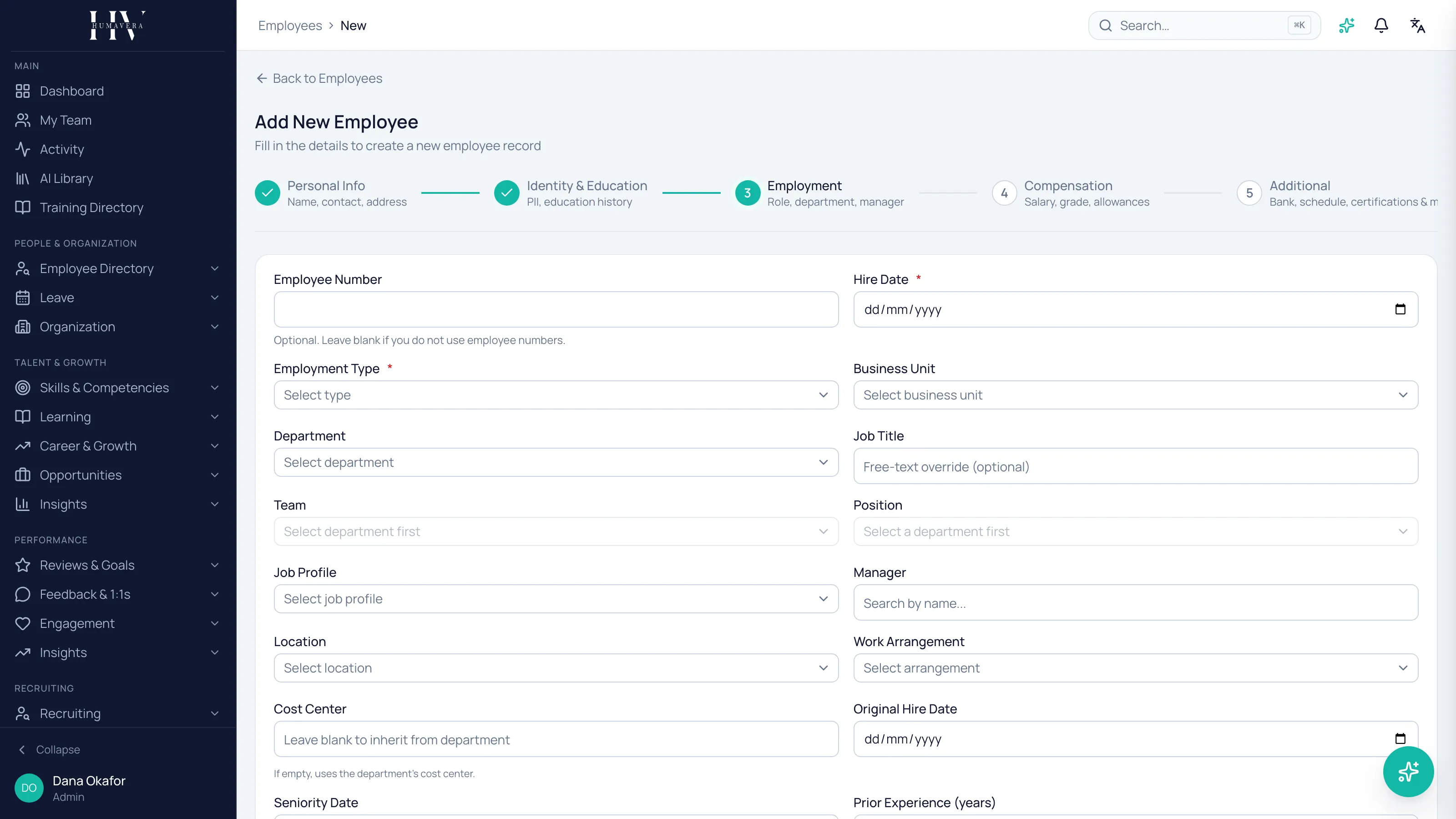
- Work through the wizard, selecting Continue at each step.
- On Access, decide whether this person gets a user account.
- On Review, check the details and select Create Employee.
A record and a login are different things
Section titled “A record and a login are different things”This is the decision most often misunderstood. Creating an employee creates a record. A user account is a separate opt-in on the Access step.
| Option | Description |
|---|---|
| Create user account | Lets this person sign in to Humavera. |
| Send invite email | Sends a welcome email with sign-in instructions. Available when creating an account. |
An employee with no account still exists fully: they can be paid, hold leave balances, appear on the org chart, and be assessed. They cannot sign in to see any of it.
Example: Tom Hargreaves is paid through HC Corp UK Ltd and never signs in, so he has a record and no account. Olivia Bennett approves leave, so she needs both.
Creating an account later is possible, so the safe default for someone who may not need access is to leave it off rather than issue credentials nobody uses.
What the wizard collects
Section titled “What the wizard collects”The steps you see depend on which sections your workspace has enabled, so a lean configuration shows fewer.
| Option | Description |
|---|---|
| Personal Info | Name, contact details, and address. |
| Identity & Education | Identity documents and education history. |
| Employment | Role, department, and manager. |
| Compensation | Salary, grade, and allowances. |
| Additional | Bank details, schedule, certifications, and more. |
| Access | Whether this person gets an account. |
| Review | A summary before the record is created. |
The employment step is the one that propagates
Section titled “The employment step is the one that propagates”Department, manager, and position are read by everything downstream. A missing manager leaves the person off the org chart and leaves their approvals with nowhere to go; a missing department leaves them out of department reporting and department-scoped assignments.
Example: an HC Corp UK Ltd engineer created without a manager does not appear beneath anyone on the org chart, and their leave requests have no approver until one is set.
Sensitive fields are protected as you enter them
Section titled “Sensitive fields are protected as you enter them”Identity fields are stored encrypted and displayed masked. Revealing one afterwards is a separate action, and someone without permission is told they do not have it.
What happens next
Section titled “What happens next”The employee appears in the directory and becomes selectable as a manager, a department member, and a payroll subject. Create an onboarding checklist for them next, and if you created an account with an invite, they receive an email to set their password.
Related
Section titled “Related”© 2025-2026 Humavera Documentation - BPilot Ltd. All Rights Reserved